



Image alt text in WordPress is one of those things that sounds boring but can seriously boost your SEO. If you’ve been uploading images without filling in any of the metadata fields, you’re leaving free SEO on the table!
Here’s the thing. Every image you add to your WordPress site comes with several hidden fields: alt text, title, caption, and description. Most people skip right past them. But search engines like Google can’t actually “see” your images. They rely on these fields (especially the alt text) to understand what the image is about, and that information directly affects how your site ranks.
Let’s break down what each field does, which ones actually matter for SEO, and exactly how to fill them in.
What did I leave out? Leave a comment and let me know what questions I can answer!
One of the things you can work with is your image metadata (data about data, ha!). In this instance, it is information about the images added to your website.
Alt text (short for “alternative text”) is a text description attached to an image. It serves two important purposes.
First, accessibility. Screen readers used by visually impaired visitors read the alt text out loud so the person knows what the image shows. This is actually the original purpose of alt text, and it’s required for accessibility compliance.
Second, SEO. Google and other search engines use alt text to understand what your image is about and how it relates to the rest of your page content. This affects both your regular search rankings AND your image search rankings. According to Google, nearly 19% of search results pages include images, so optimizing your image alt text in WordPress is a real opportunity to drive more traffic.
Alt text is only half of image SEO. The other half is file size, which I cover in my guide to optimizing images for your WordPress website.
Fun fact: “alt tag” is technically a misnomer! The correct term is “alt text” or “alt attribute.” But everyone (including me!) says “alt tag,” so don’t worry about it.
When inserting an image into a post, we often see the image itself.
Behind the scenes (in the media library), each image comes with several meta options.
For each image, you will see input fields for URL, Title, Caption, Alt Text, and Description.

After inserting an image into a post, this meta-information is pulled directly into the post.
You can view what information is pulled in by clicking edit as text (classic editor) or view as html (block editor).


Code for this image:
<figure>
<img src="https://shelleyweb.com/wp-content/uploads/2019/04/I-am-an-image.jpeg" alt="hands typing on the computer with the text I am an image. But there is so much more to me!."/>
<figcaption>
This is my caption.
</figcaption>
</figure>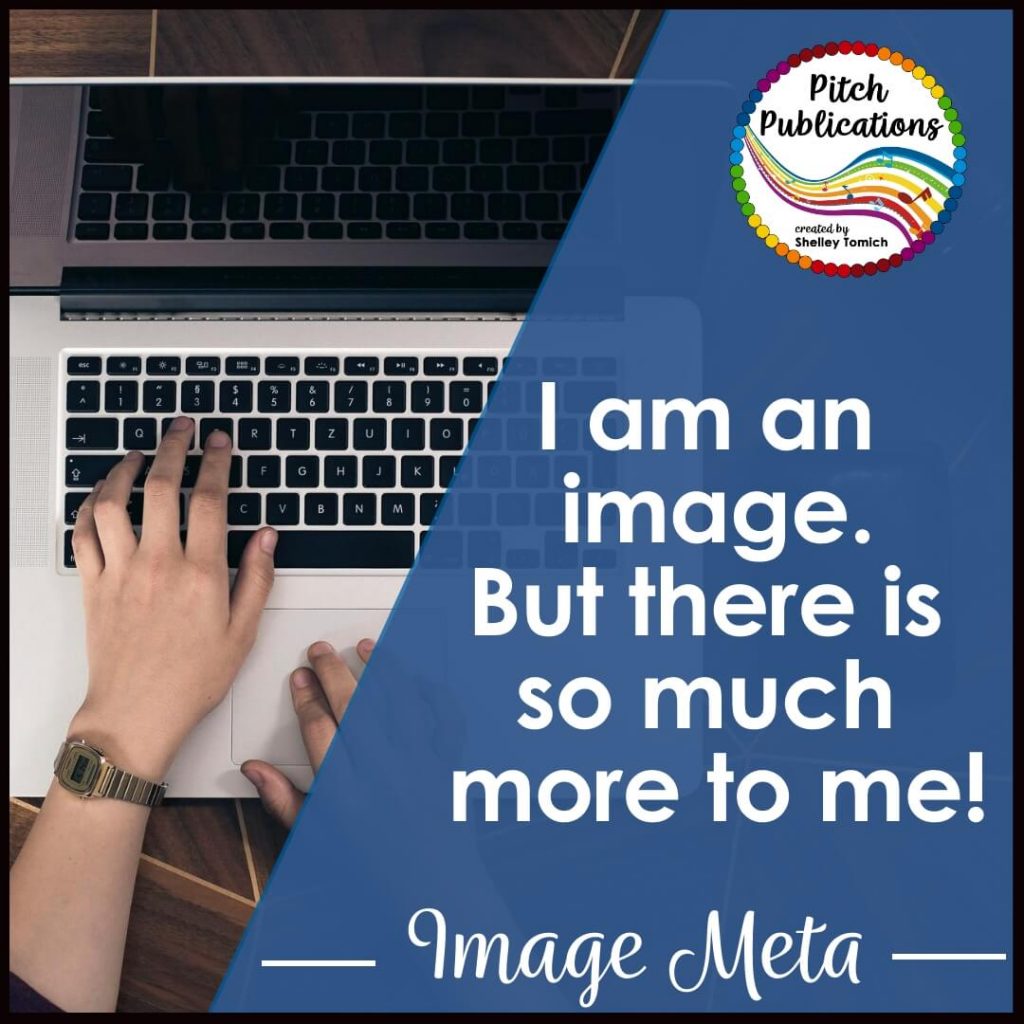
Let’s take a look at each part of the meta data code above.
The URL is the web address for your picture. It’s usually in the form of yourwebsite.com/wp-content/uploads/image-file-name.jpg.
SEO experts advise naming the file something relevant BEFORE you upload it. “ukulele-featured-post.jpg” is way better than “screenshot-123.jpg” or “IMG_13847365093473.jpg.” I have countless files on my site with names like that from the early days. 😬
The filename becomes part of the image URL, and that URL is one of the signals Google uses to understand what the image is about. So take the extra two seconds to rename your files before uploading!
URL in code would look like this (Color coding only to show different parts and not necessary for the code to work):
<img src=”yourwebsite.com/image-file-name”/>
WordPress automatically fills the title field with the filename when you upload an image. However, the title is NOT inserted into the HTML code when you add an image to a post.

So what’s it for? The title is mainly used for searching within your media library. When you have hundreds (or thousands!) of images and want to reuse one, it’s a lot easier to search for “logo” than “124859503403.”
It’s not currently considered important for SEO to add the title to the image’s HTML. Just make sure each image has a descriptive title in the media library so you can find it later. Usually the filename does the job.
The alt text field is the MOST important metadata field for both SEO and accessibility. This is where you want to focus your energy!
The alt text should describe what is actually in the picture. That’s it! Describe what someone would see if they looked at the image.
The main purpose of alt text is accessibility. Screen readers used by visually impaired visitors read the alt text out loud so the person knows what the image shows. The alt text also appears in place of the image if the image goes missing from your server for some reason.

Alt text is also crucial for SEO. It helps search engines understand the context of the image, which affects both your regular search rankings AND your image search rankings.
A quick confession: Pinterest used to use the alt text as the pin description, so many bloggers (myself included!) used the alt tag for keyword-heavy marketing descriptions. For example, instead of saying an image shows a “service ad with blue digital graphics,” I would have written “Check out how I can save you time and money by maintaining your website!” That does NOT describe the image at all.
Don’t do that anymore! Use the alt text to actually describe the image. You can (and should) work your focus keyword in naturally when it makes sense, but the description needs to be accurate.
In your HTML code, alt text looks like this:
<img src=”yourwebsite.com/image-file-name” alt=”This text describes what the picture actually is.”/>
I know, I know. You have HUNDREDS of images on your site and you are NOT going back to write alt text for every single one. I get it! That’s why I use AltText.ai. It’s an AI-powered tool with a WordPress plugin that automatically generates alt text every time you upload an image. No more blank fields!
It also has a bulk generation feature, so you can go back and fix all those old images too. It integrates with Rank Math and Yoast to work in your focus keywords, it handles all the image formats (JPG, PNG, WebP, AVIF), and if you have a WooCommerce store it’s smart enough to recognize your products. Try it free with 25 images and see for yourself!
Here’s how to write great alt text every time:
Be descriptive and specific. Instead of “dog,” write “golden retriever puppy sitting on a blue couch.”
Keep it under 125 characters. Screen readers typically stop reading alt text after about 125 characters, so shorter is better.
Don’t start with “picture of” or “image of.” Screen readers and Google already know it’s an image from the HTML code.
Include your focus keyword naturally, but don’t stuff it. If your post is about “WordPress maintenance,” and the image shows someone working on a WordPress site, then “woman performing WordPress maintenance on a laptop” is perfect. But don’t force keywords where they don’t belong.
Don’t skip decorative images entirely. If an image is purely decorative (like a divider line), you can leave the alt text empty. But for any image that conveys meaning, always add alt text.
The description field is used to add more detailed information about an image. It would appear IF the image is allowed to have its own standalone page on your website (called an “attachment page”).
Here’s the thing though: attachment pages are generally BAD for SEO. Google sees a page with just one image and very little text as low-quality content, and that can hurt your site. Pages like that often show up in Search Console as “Crawled – currently not indexed.” My guide to Google Search Console errors explains what that means.
The fix is simple. Use your SEO plugin to disable attachment pages.
If you’re using Rank Math: Go to Rank Math > General Settings > Links and set “Redirect Attachment URLs” to the attachment.
If you’re using Yoast SEO: Go to SEO > Search Appearance > Media and set “Redirect attachment URLs to the attachment itself?” to Yes.
Use the plugin YOAST SEO to disable this.


Once attachment pages are disabled, the description field isn’t doing much. You can fill it in for your own reference, but it won’t impact SEO.
The caption appears below (or overlaid on) the image and is visible to your site visitors. It’s useful for providing additional context about the image, but it’s not required for most photos.
Captions are NOT a major SEO factor, but they can improve the user experience by giving visitors extra context.
In HTML, a caption adds some extra code around the image. It looks like this:
<figure>
<img src=”yourwebsite.com/image-file-name” alt=”This text describes what the picture actually is.”/>
<figcaption>
Here is the caption of the picture.
</figcaption>
</figure>
In plain English: adding image alt text in WordPress tells Google more information about your images. What is the image about? What does it show? Is the page accessible?
Google then ranks your image higher in image searches, which ALSO tells Google that the page itself should rank higher for text searches. It’s all related! I can’t explain the entire Google search algorithm (nobody can!), but in general, when you boost one part of SEO, it positively affects the other parts.
Here’s why this matters more than ever in 2026. Google continues to emphasize image search and visual results. AI-powered search features rely even more heavily on understanding what images actually show. And with accessibility becoming an increasingly important ranking signal, properly labeled images help your site across the board.
Fill in your metadata BEFORE inserting the image into your post. The information doesn’t automatically sync between the media library and the post. If you change the alt text in the library after inserting the image, you’ll also have to update it on each post where that image appears. And vice versa.
To delete a caption in the block editor, delete from <figcaption> to </figcaption> in the HTML view.
Audit your existing images periodically. If you’ve been blogging for a while, you probably have a LOT of images with missing or outdated alt text. Tools like Screaming Frog (free version) can crawl your site and show you which images are missing alt text. There are also WordPress plugins like Image Attributes Pro and Alt Text AI that can help bulk-update alt text across your site.
Pin for later!


One Response
Great insights! For those seeking professional web design services in Chicago, consider collaborating with Web Design Chicago by Experts Web Designs. We specialize in creating responsive, user-friendly, and SEO-optimized websites tailored to your business needs.