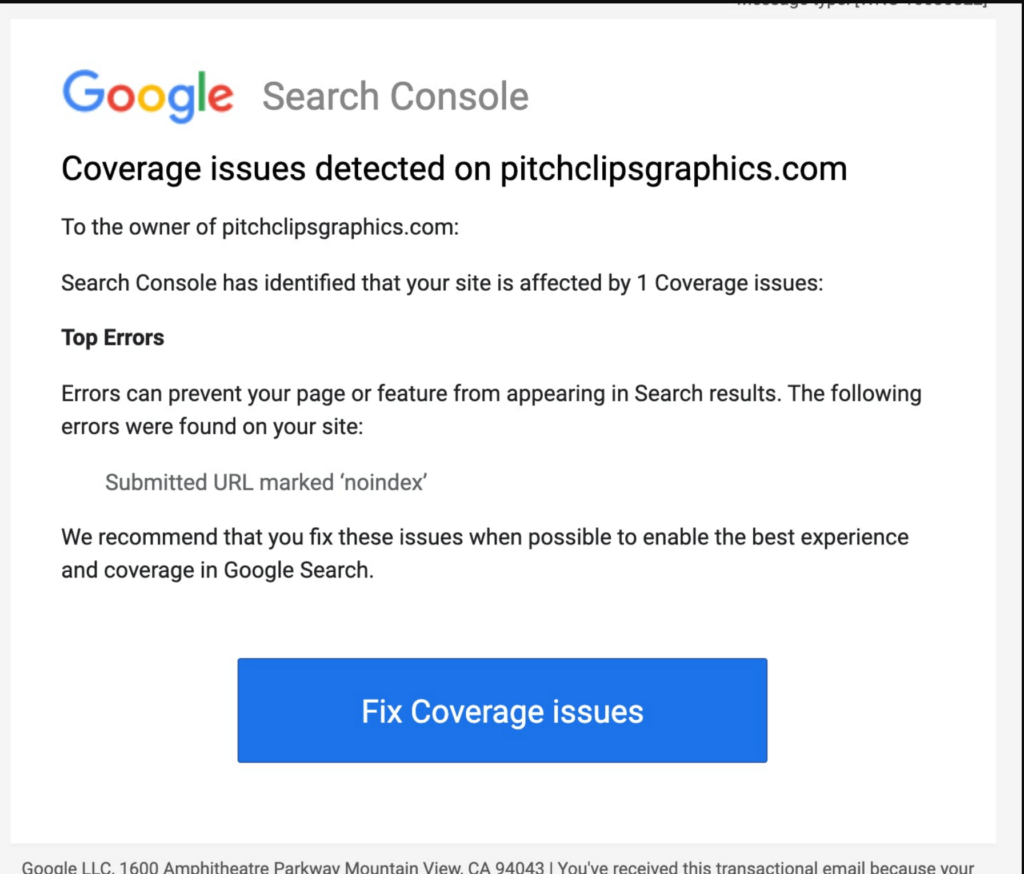
You probably got a scary email like this one! The message may vary but they all sound scary and Google makes it seem like your content will never be on Google again! Wrong! 99.9% of the time they are just “information” and not “warnings” and even if an actual “warning” when you press “validate fix” it validates a fix when you have changed nothing. (So there was nothing wrong in the first place!). But let’s go back to the beginning. Then you can reference the fixes you might need to do at the end of this post!
If you’re brand new to this, Google Search Console (GSC) is a free service hosted by Google that gives you information about how your site appears in search results. When someone googles a keyword, GSC tells you when and where your site shows up and what might prevent your site from appearing for that keyword.
Here is a quick overview of what you’ll see in Google Search Console (note: the interface is subject to change at any time):
You can access Google Search Console here: https://search.google.com/search-console/about
Click “Get Started” and you can add your site. Adding your site involves adding a small piece of code to your site or your DNS records at your web host. Here is one of many tutorials on how to do that:
Before we get into the specific Google Search Console errors, let’s cover a couple of terms that come up constantly.
Indexed means that Google has your page/URL ready to deliver to someone as a search result. If your page is de-indexed, Google will NOT serve that page as a search result.
Here’s the important part: de-indexing is not always a bad thing! You don’t WANT some pages indexed. (Watch the video below about “Page with Redirect” for examples!)
Google recognizes that some pages have duplicate content. This could be a landing page that you’ve copied several times, or it could be page 1, page 2, page 3, etc. of your shop or blog. Google doesn’t want you to compete with yourself, so it chooses one master (or “canonical” as they call it) page to make available in search results.
You can tell Google which page is canonical, or you can let Google choose it for you.
Let’s take a closer look at some of these errors! You can control find and search for your particular error to see if it is anything to worry about or not!
These errors are found here:
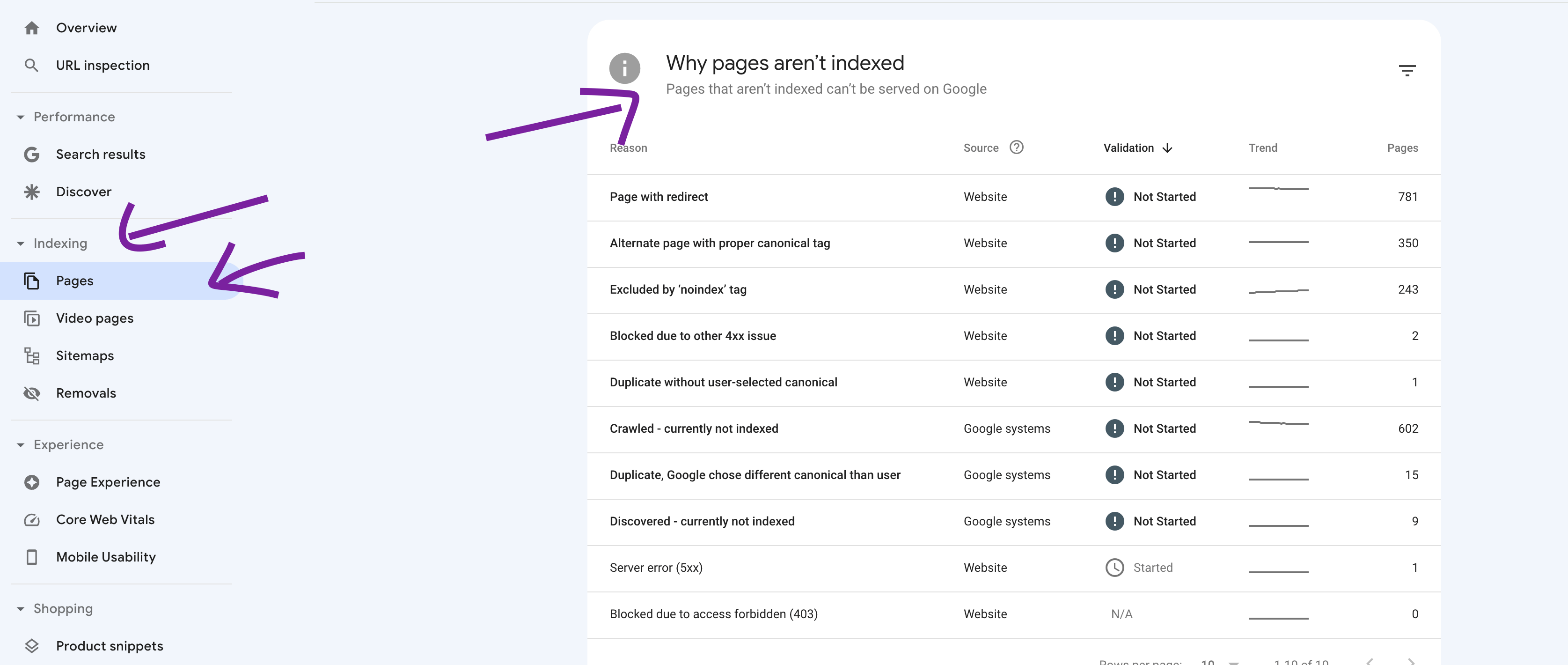
These are pages that Google chose not to index because the URL is similar to another URL. Your site (or Google) has decided that a different URL is the main or “canonical” URL and will be delivered in search results.
For example, site.com and site.com/ can be seen as two different URLs (the slash at the end is the only difference). You don’t want to compete with yourself in search results, so Google recognizes that it should only show one version and ignores the other.
Do you need to fix this? Almost never. This is informational.
Google is letting you know there are pages on your site that are throwing a 4xx error (the “4” just means the website URL doesn’t work) that aren’t specifically 403 or 404 errors. The page could be an administrative page that should not be crawled or it might be a page throwing a server error.
Do you need to fix this? Check these out and fix any valid links. Ignore pages that shouldn’t be crawled (like admin pages).
Google is letting you know there are pages on your site that are restricted. These are usually pages you WANT to be restricted, like password-protected pages and wp-admin pages.
Do you need to fix this? Usually no. If you see a password-protected page here, you may want to go ahead and mark it as noindex. But 403 errors on admin pages are totally normal.
In this error set, Google has crawled a page but decided that it should not be displayed in search results. You will see a lot of pagination and feed URLs here.
Do you need to fix this? Check the list. If you see important pages here, you may want to improve the content or add internal links pointing to them. Pagination URLs are fine to ignore.
Google knows this URL exists but has chosen not to fully index the content yet. This could be due to a lack of content on the page, lack of internal links to the content, or any other reason Google has decided on.
Do you need to fix this? You can request indexing for pages you’d like indexed. For unimportant pages, this is safe to ignore.
This error means Google found duplicate content on multiple URLs and has chosen a DIFFERENT URL than the one you told it to use as the “canonical” or master. Sadly, they don’t tell you what that other URL is.
Do you need to fix this? It’s worth reviewing if you specifically set canonical URLs. Google may be overriding your preference for a reason.
This error means Google found duplicate content on multiple URLs and you did not specify which URL is canonical. Therefore, Google chose one for you.
Do you need to fix this? Usually fine. If you want more control, you can set canonical URLs yourself using your SEO plugin (like Rank Math or Yoast).
These are pages that YOU marked as “noindex.” These include most WooCommerce pages like checkout, thank you, and cart, as well as any special landing pages you told Google not to index. I also set post types like “shipping class” and “formats” to noindex.
Do you need to fix this? These are NOT errors! Just double-check that you didn’t accidentally mark an important page as noindex.
These are pages that are throwing a 404 error.
⚠️ This is one of the few Google Search Console errors you should actually look at! A 404 error indicates a URL used to exist but now leads to a broken page. If people or other sites are linking to that URL, they’re hitting a dead end. Set up 301 redirects for any important 404 pages.
These are pages that Google chose not to index because the URL is redirected to a different URL (which probably IS indexed).
Do you need to fix this? Usually NOT an error. This is just information telling you that redirects are in place and working.
This is a confusing error, and these links DO need to be looked at. The page may or may not exist, but Google is not seeing content like it expects to see. For example, an empty tag or category on your site will have a URL, but Google recognizes that there is no content there.
Do you need to fix this? Yes, check these. Look for links that could be valid pages and redirect them as needed. Empty tag/category pages should be set to noindex.
A 5xx error means the server itself had a problem when Google tried to access the page. This could be a temporary issue (your server was overloaded) or an ongoing problem.
Do you need to fix this? If it’s a one-time thing, it usually resolves itself. If you see the same pages listed repeatedly, check with your hosting provider to see if there’s a server issue. Reach out to me if you need help troubleshooting this one!
Video indexing means Google is prepared to serve the video listed on your site as a search result. Video errors are found here:
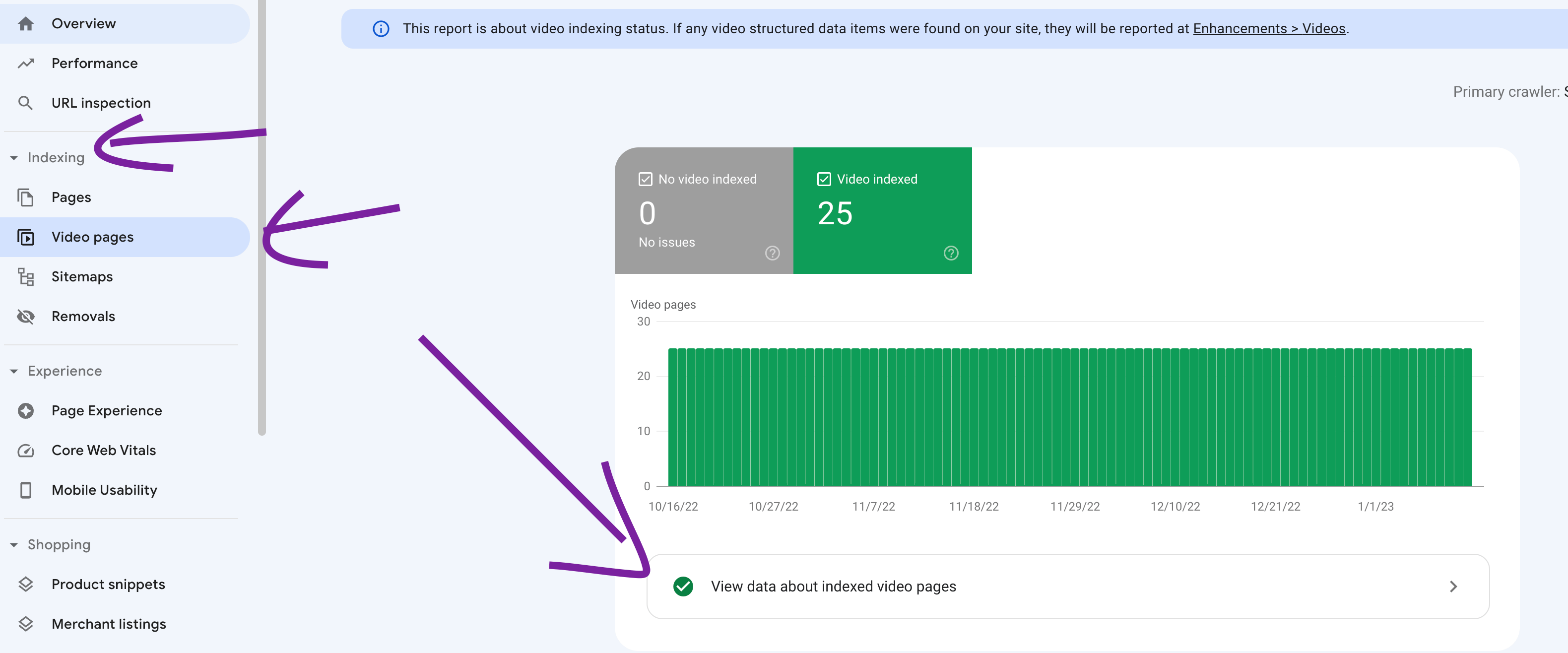
Google knows there is a video on the page, but most likely the video is too far down on the page or is lazy loaded. Lazy loading is a speed optimization setting that waits to load the video until the user scrolls to it.
Do you need to fix this? If you want the video indexed, try disabling lazy loading for that video and/or moving it higher on the page. If you have multiple videos, make sure the main video is clearly prominent.
Google recognizes there is a video on the page and has chosen not to index it. It may see the content as insignificant, it may just not have gotten around to indexing it yet, or there may be multiple issues with the video.
Do you need to fix this? Usually not urgent. If you really want the video indexed, make sure it has a unique title, description, and thumbnail.
There was no image thumbnail specified for this video. Google was unable to generate one for you.
Do you need to fix this? Yes, this one is easy. Add a thumbnail link and the error will resolve.
Good news: you can cross this one off your list! Google retired the Mobile Usability report in December 2023, so you won’t see these errors in Search Console anymore.
Google still cares a lot about how your site works on phones. The best test is the simplest one: pull up your site on your phone and click around. Can you read the text? Can you tap the buttons easily? Does anything run off the side of the screen? If it all looks good, you’re good!
This is found for those that have an ecommerce store for their site.
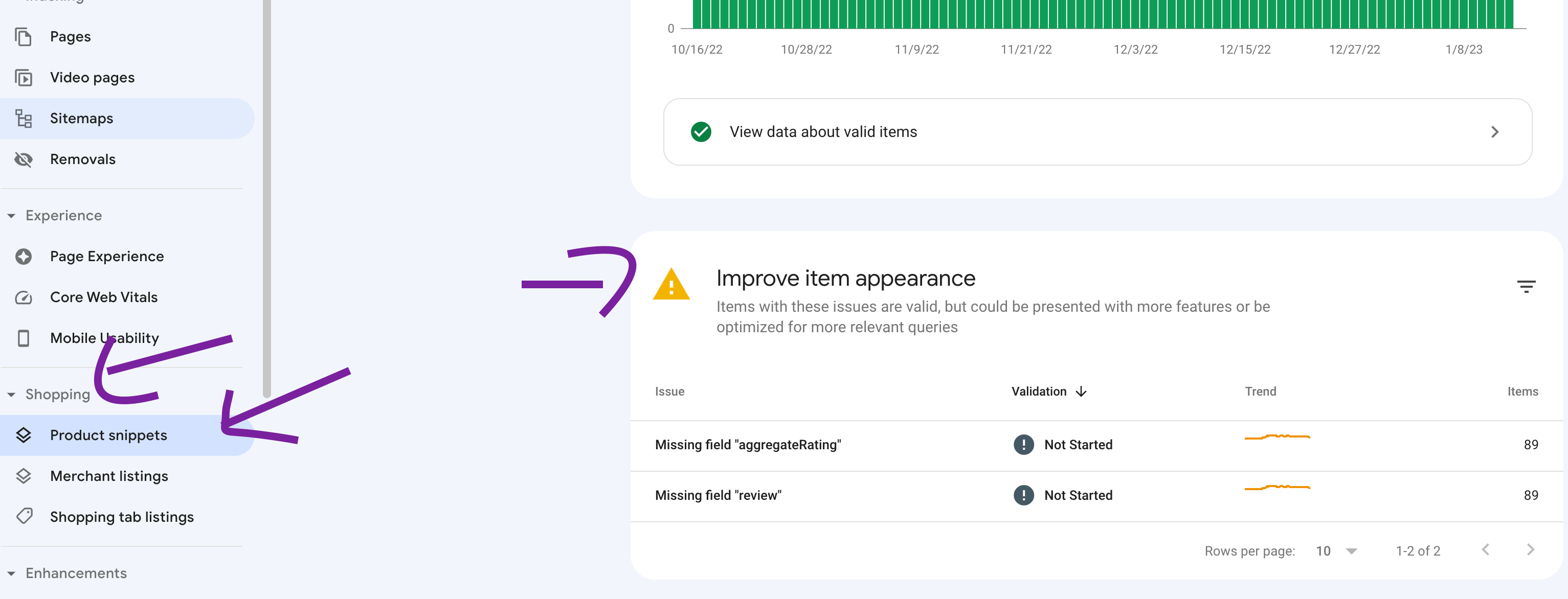
Google is letting you know that your product doesn’t have any reviews or star ratings. When a product has reviews, Google can show those little gold stars in search results. When it doesn’t, Google flags it as “missing.”
The good news: these show up as warnings, not errors. Your products still appear in Google just fine, just without stars.
Do you need to fix this? No. These clear up on their own as your products get reviews. Please don’t add fake reviews to make the warning go away, because that’s against Google’s rules. If your products do have reviews and you still see this, check that reviews are turned on in WooCommerce → Settings → Products, and reach out to me if they still aren’t showing.
This one means Google found two sets of star ratings for the same product. It almost always happens when two plugins are both telling Google about your product: for example, WooCommerce and your SEO plugin (Rank Math or Yoast), or a separate reviews plugin.
Do you need to fix this? Yes, this one is worth fixing. Google may skip showing your stars because it doesn’t know which rating to trust. The fix is usually turning off the product info in one of the plugins so only one is talking to Google. Reach out to me and I can take a look.
This is found for those that have an ecommerce store for their site.
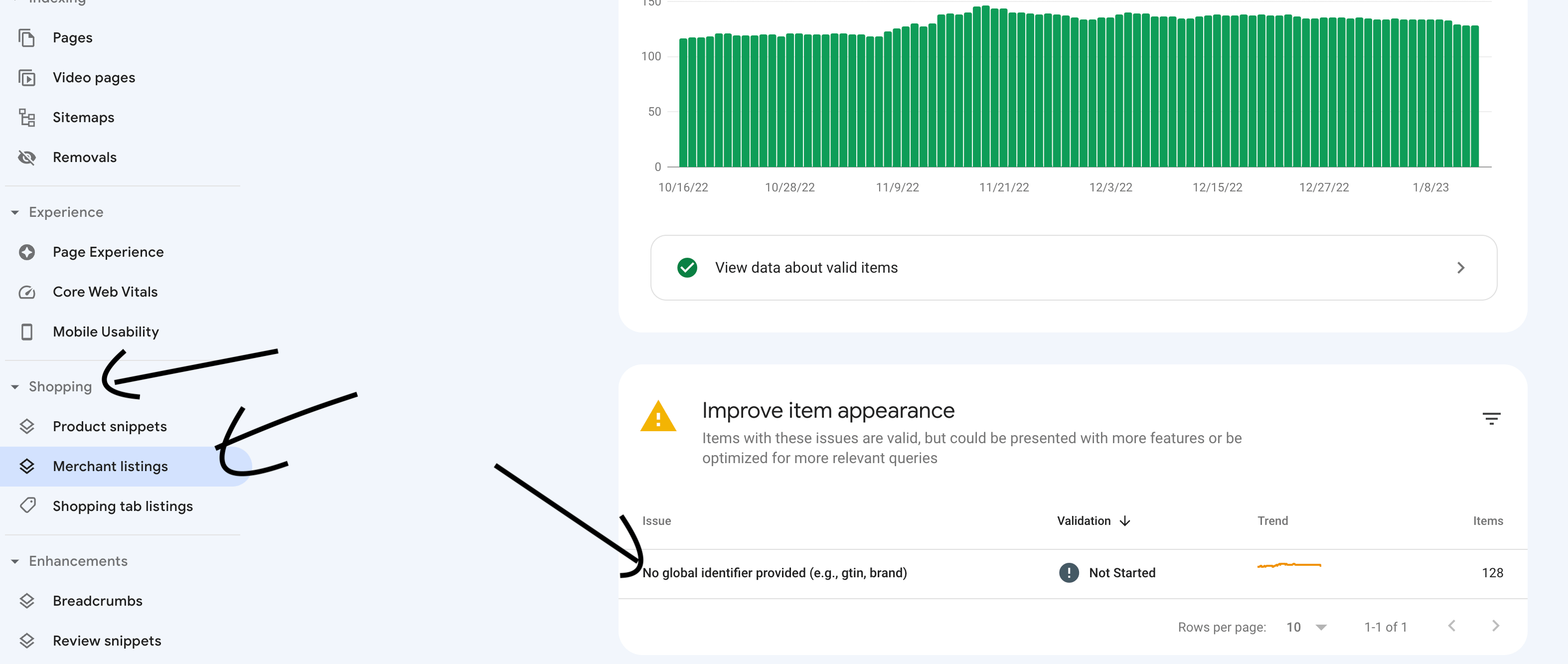
Google wants a way to identify your product, like a brand name or a barcode number (GTIN, UPC or ISBN).
If you sell digital products, like teaching resources, you won’t have a barcode, and that’s okay! Barcodes are for physical products made by a manufacturer.
Do you need to fix this? Usually not. It’s a warning, and your products still show up in Google. If you’d like to clear it, adding your brand helps. Newer versions of WooCommerce include a built-in Brands feature, so you can set your shop name as the brand. If you sell physical products that have barcodes, WooCommerce also has a spot to add the GTIN on each product.
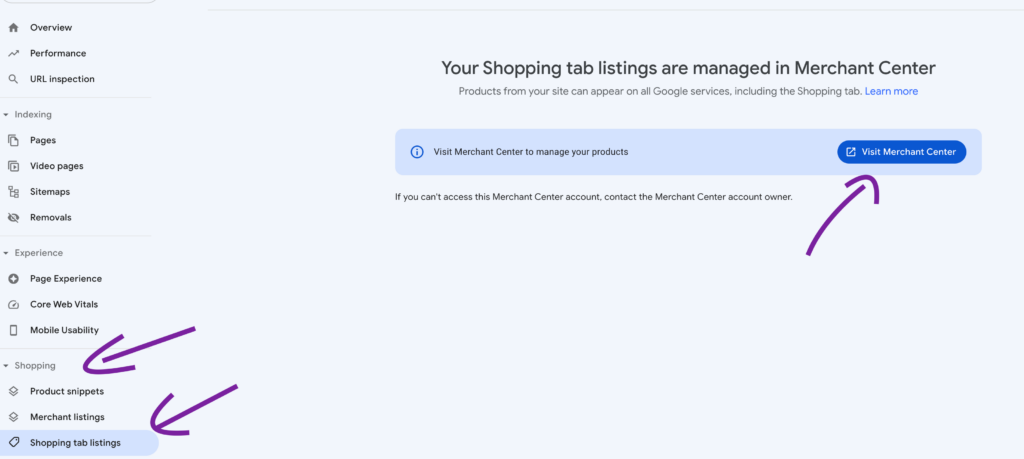
This may only appear if you are a verified merchant. And all problems have to be addressed at the verified merchant and not on Google Search Console.
Let me know if you see a situation not covered above! Looking into your individual site is a billed task, but I am happy to add a general tutorial for all here, time permitting.
Pin for later!